

Iron gForce Custom Features
Everything you need to understand and implement the advanced capabilities available in the Iron gForce plugin for your job board.
Office Hierarchy
Featured Jobs
Translations
Search & Filtering
Attribution Routing
Hierarchical Dropdowns
Theme Templates
Content Clean-up
Weighted Keyword Search
Intelligent search ranking that prioritizes the most relevant job results instead of simple keyword filtering.
- Ranks search results by relevance instead of just filtering
- Job titles containing the search term are weighted higher than content matches
- Multiple keyword occurrences increase the relevance score
- Provides a more intuitive search experience for job seekers
- Title matches: 6 points per match
- Department matches: 2 points per occurrence
- Content matches: 1 point per occurrence
- Jobs sorted by total score (highest first)
- Equal scores maintain alphabetical order by title
- Applies to both main listings and Featured Jobs sidebar
| Search Term: “Nurse” | Score |
|---|---|
| Job with “Nurse” in title | 6 pts |
| Job with “Nurse” in department name | 2 pts |
| Job with “Nurse” appearing twice in description | 2 pts |
| Job with “Nurse” in title, department, AND once in description | 9 pts |
Office Hierarchy Display
Display office locations in a structured, hierarchical format based on Greenhouse’s parent-child relationships.
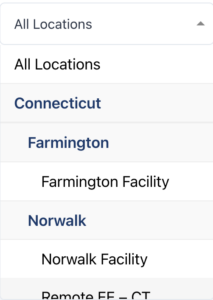
- Shows offices in a tree structure (e.g., State → City → Office)
- Automatically builds hierarchy from Greenhouse API data
- Supports unlimited nesting levels
- Alphabetically sorts options at each level
- Toggle between hierarchical and flat list display
- Reads
parent_idrelationships from Greenhouse office data - Builds N-level tree structure automatically
- Parent offices are styled distinctly from child offices
- Indentation indicates hierarchy depth
|- Charlotte (City – Child)
|- Raleigh (City – Child)
|- Downtown Raleigh (Office – Grandchild)
Admin Configuration
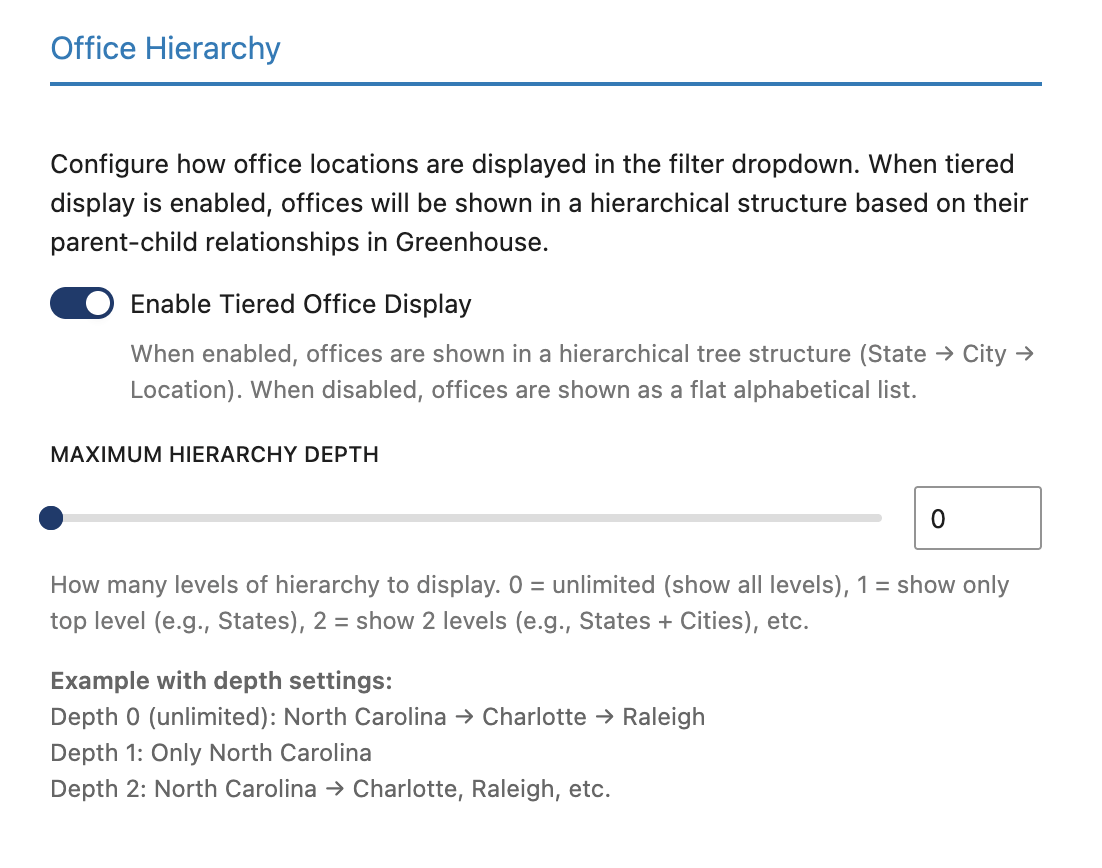
Location: Iron gForce → [Your Job Board] → Search Tab → Office Hierarchy
- Enable Tiered Office Display: Toggle between hierarchical tree structure or flat alphabetical list
- Enabled: Offices shown in parent-child tree structure with indentation
- Disabled: Offices shown as a simple alphabetical list
- Maximum Hierarchy Depth: Control how many levels of hierarchy to display
- 0 (Unlimited): Show all levels (State → City → Office → etc.)
- 1: Show only top level (e.g., States only)
- 2: Show two levels (e.g., States + Cities)
- 3: Show three levels (e.g., States + Cities + Offices)
.irongforce-hierarchical-select-container– Main container for hierarchical select.irongforce-select-depth-0– Root level items (bold, light background).irongforce-select-depth-1– First child level (indented).irongforce-select-depth-2– Second child level (more indented).irongforce-select-depth-3– Third child level.irongforce-select-depth-4– Fourth child level.irongforce-select-depth-5– Fifth child level.irongforce-select-parent– Any item that has children.irongforce-select-child– Items without children
- Companies with offices in multiple states/regions
- Organizations with complex geographic structures
- Job boards where location filtering is important
- Sites that want to reduce dropdown clutter with logical groupings
How It Looks
Featured Jobs System
Highlight important job postings to make them stand out on your job board with prominent placement and custom styling.
- Displays jobs marked as “featured” in a prominent sidebar
- Featured status is configured in Greenhouse using the
Display as featured post?custom metadata field (yes/no) - Status syncs automatically when jobs are imported from Greenhouse
- In Greenhouse, create a custom metadata field on your jobs with these exact settings:
- Field Name:
Display as featured post? - Field Type: Yes/No
- Field Name:
- Set the field to “Yes” on any jobs you want to feature
- The plugin syncs this field automatically during job imports
- Featured jobs appear in a dedicated sidebar next to your main job listings
The plugin reads a specific Greenhouse custom metadata field. The field must be created with exactly the following name and type – including the question mark:
If the field name does not match exactly, the plugin will not detect the featured status. Double-check for typos, spacing, and the trailing question mark.
How It Looks

- Sidebar Display: Featured jobs appear in a dedicated sidebar next to the main job listings
- Layout Classes: The main container gets
has-featured-jobsclass when featured jobs exist - Responsive Design: Sidebar collapses on mobile devices (991px and below)
.irongforce-layout-wrapper.has-featured-jobs– Main container with featured jobs.irongforce-featured-jobs– Featured jobs sidebar container.irongforce-featured-jobs-list– List of featured jobs.irongforce-featured-job– Individual featured job item.irongforce-featured-job-title– Featured job title.irongforce-featured-job-meta– Featured job metadata container.irongforce-featured-job-department– Department information.irongforce-featured-job-location– Location information.irongforce-featured-job-time– Employment type.irongforce-featured-job-date– Job posting date
Translation & Text Override System
Customize any text that appears on your job board without modifying code. Supports multiple languages and persists through plugin updates.
- Change any text, labels, or messages that appear on your job listings
- Supports multiple languages or custom terminology
- Changes persist through plugin updates
- Directory Setup: Create the directory
/wp-content/irongforce-translations/in your WordPress installation - Translation Files: Create JSON files with the naming convention:
irongforce-{job-board-token}-translations.json- Example:
irongforce-mycompany-translations.json - Note: Special characters in your token (hyphens, spaces, etc.) are replaced with underscores. For example, token
my-companyuses filenameirongforce-my_company-translations.json
- File Permissions: Ensure the web server can read the files (644 permissions)
- Automatic Loading: Files are automatically loaded based on your job board configuration
{
  "departments": {
    "Engineering": "Tech Team",
    "Sales": "Revenue Team"
  },
  "locations": {
    "New York, NY": "NYC Office",
    "Remote": "Work from Home"
  },
  "metadata": {
    "employment_type": {
      "Full-time": "Full Time Position",
      "Contract": "Contractor Role"
    },
    "job_function_2": {
      "Backend Development": "Server-side Engineering"
    }
  }
}- departments – Department/team names from Greenhouse
- locations – Office locations and geographic data
- metadata – Custom fields from Greenhouse including:
employment_type– Full-time, Part-time, Contract, etc.job_function_2– Specific job function categories- Any other custom metadata fields from your Greenhouse setup
Need assistance with setup or additional override keys? Contact our support team for guidance.
Advanced Search & Filtering
Enhanced search capabilities with custom redirects, dynamic filtering, and support for Greenhouse custom fields.
- Custom search redirect functionality
- Dynamic filters that appear based on available job data
- Advanced location and department filtering
- Keyword search across job titles and descriptions
- Attribution-safe query parameter forwarding across search, job detail, and application flows
How It Looks
Search Redirect
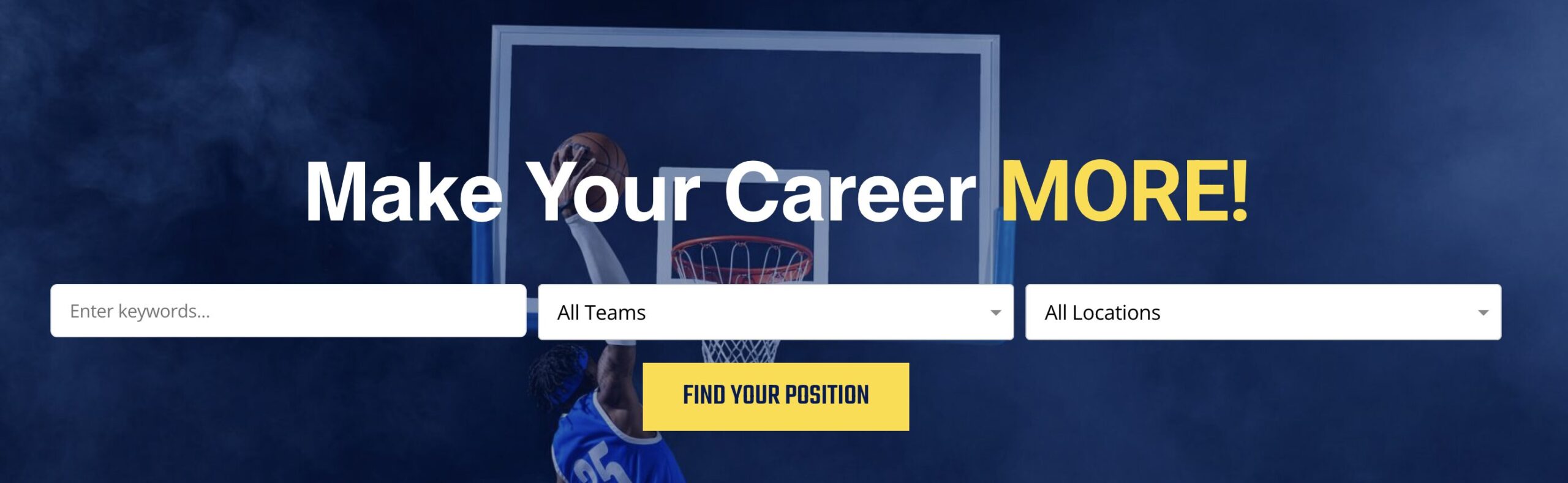
- Creates a search form that redirects to your main job listings page
- Maintains search terms and applies them automatically
- Preserves existing tracking parameters such as
gh_jid,gh_src,source,ccuid, and UTM tags - Useful for homepage or landing page search boxes
- Requires: A target page with the main job listings shortcode
job_board– Your job board tokenredirect_page– URL of the results page
button_text– Custom button text (default: “Find your position”)button_color– Button background color (default: #163b6d)button_text_color– Button text color (default: #FFFFFF)teams– Pre-select a departmentlocations– Pre-select a location
Search Form Page:
[irongforce_search_redirect job_board="your-token" redirect_page="/careers/"]Results Page:
[irongforce job_board="your-token"]Example URL after redirect:
yoursite.com/careers/?keys=engineer&teams=Engineering&location=New+Yorkkeys– Keyword search termsteams– Department/team filterlocation– Location filtermeta_location_only– Meta location filterjob_function_2– Job function filtergh_jid– Greenhouse job ID for direct job routinggh_srcandsource– Source attribution valuesccuid– Greenhouse candidate context identifierutm_source,utm_medium,utm_campaign,utm_term, andutm_content– Campaign attribution parameters- Any existing non-empty query parameters already on the request URL are preserved automatically
Dynamic Filters
- Filters automatically appear based on your job data
- Location filters show hierarchical relationships (City → State)
- Department filters group related positions
- All filters work together for refined searching
- Job Function:
job_function_2(array field in Greenhouse) - Employment Type:
employment_type(Full-time, Part-time, Contract) - Schedule Type:
schedule_type(Remote, Hybrid, On-site) - Job Category:
job_category(Engineering, Sales, Marketing, etc.) - Meta Location:
meta_location_only(alternative to standard location)
Attribution-Safe Routing
Preserve campaign and source attribution parameters as candidates move from homepage search to listings, job detail pages, and the embedded Greenhouse application.
- Preserves existing URL parameters on main job listing links
- Passes existing query parameters from homepage search forms to the main job search page
- Forwards tracking parameters into the embedded Greenhouse application iframe
- Redirects directly to the matching job detail page when
gh_jidis present
gh_jid– Greenhouse job ID used for direct job routinggh_srcandsource– Source attribution values such as LinkedInccuid– Greenhouse candidate context identifier- UTM parameters such as
utm_source,utm_medium,utm_campaign,utm_term, andutm_content - Any additional non-empty query parameters already present on the request URL
- Candidate arrives from a tracked source such as LinkedIn with URL parameters attached
- Homepage search redirect preserves those parameters when sending the candidate to the listings page
- Job links on the listings page keep the same parameters when the candidate opens an individual job
- The embedded Greenhouse application receives the same parameters in its iframe URLs
- If the landing URL contains
gh_jid, the candidate is sent straight to the matching job detail page instead of stopping on the listings page
yoursite.com/careers/?gh_jid=1234567&gh_src=LinkedIn&source=LinkedIn&ccuid=abc123&utm_source=linkedin&utm_medium=social&utm_campaign=job-promo- Teams running paid or organic recruiting campaigns on LinkedIn and other job platforms
- Sites that need cleaner source attribution inside Greenhouse
- Organizations using homepage search forms and embedded job applications
- Recruiting teams that want fewer drop-offs between campaign click and application start
Hierarchical Location & Department Dropdowns
Smart dropdown menus that display parent-child relationships for locations and departments, reducing clutter and improving navigation.
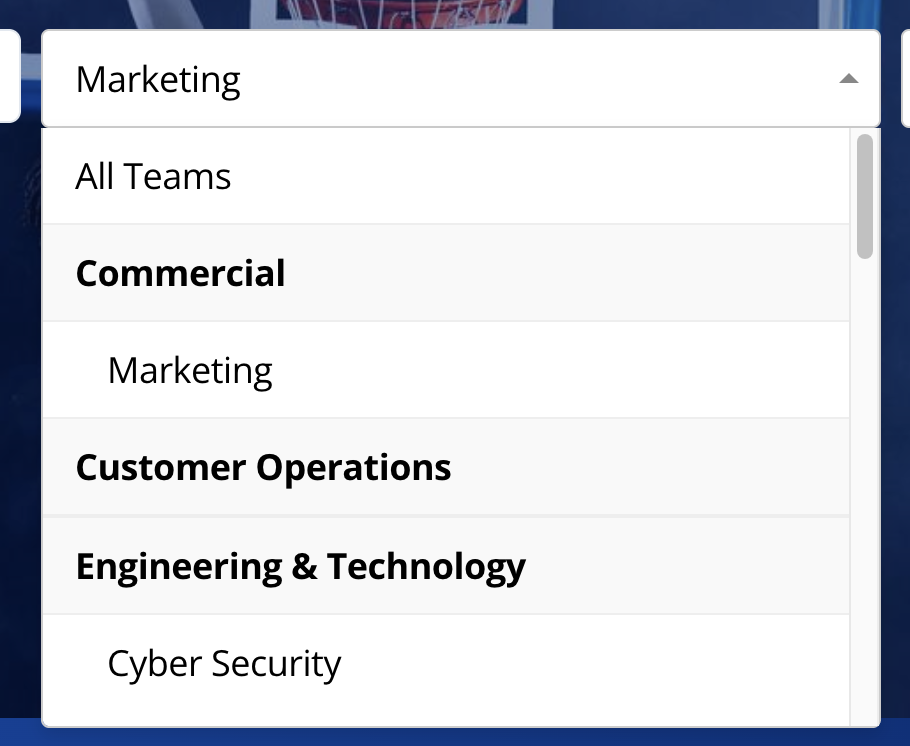
- Location dropdowns show parent → child relationships (2 levels)
- Department dropdowns show parent → child team hierarchies (2 levels)
- Improves user experience with organized, logical groupings
- Reduces clutter by grouping related options
- Automatically detects hierarchical relationships in your Greenhouse data
- Creates nested dropdowns (e.g., “New York” under “United States”)
- Users can filter by broad categories or specific locations
- Maintains all parent-child relationships from your ATS
How It Looks
- Data Source: Uses Greenhouse metadata fields stored in WordPress post meta
- Relationship Detection:
- Locations: Uses
gjlp_parent_locationmetadata to create parent → child relationships (2 levels) - Departments: Uses
gjlp_department_parentsmetadata for parent → child grouping (2 levels)
- Locations: Uses
- Note: For multi-level hierarchy (3+ levels), use the Office Hierarchy feature instead, which supports unlimited depth via the Greenhouse API
- Custom Field Support:
meta_location– Alternative location fielddepartment– Primary department taxonomyoffice– Office location taxonomy
- Frontend Implementation: JavaScript handles the hierarchical select interactions
.irongforce-hierarchical-select-container– Main container.irongforce-hidden-select– Hidden actual select element.irongforce-custom-select– Custom dropdown container.irongforce-select-selected– Selected value display.irongforce-select-items– Dropdown items container.irongforce-select-parent– Parent option styling.irongforce-select-child– Child option styling.irongforce-select-hide– Hidden state class
- Parent Labels: Auto-generated (e.g., “All Engineering” for Engineering departments)
- Child Filtering: Selecting parent shows all child options
- Mixed Selection: Can filter by parent category or specific child items
- Companies with multiple office locations
- Organizations with complex department structures
- Sites where users need to filter by geographic regions
Job Pages In Your Own Theme
Job detail pages render inside your site’s own template, so your header, footer, navigation and banners stay exactly as they are on every other page.
- Job pages use your active theme’s single post template by default, keeping the site’s look and navigation intact
- The Greenhouse application form is added to the end of the job content automatically, so nothing is lost by staying on your theme
- Imported job content is decoded correctly on the way out, so descriptions render as formatted text rather than visible markup
- Job links carry the Greenhouse job ID, so a job page always loads that specific application
Each job board picks its layout on the Settings tab under Select Post Template.
- Use Theme Template keeps your theme in control. This is the default and the best place to start.
full-width.phpgives a single full-width columntwo-column-application-on-right.phpputs the application beside the job contenttwo-column-application-on-left.phpis the same with the sides swapped
The three file-named options replace your theme’s layout entirely. Try them side by side and see which suits your site.
Developers can take full control by adding a template file to the active theme. The filename is based on the post type the plugin creates for that board: the first 16 characters of your board token, lowercased, with anything other than letters, numbers, hyphens and underscores removed, followed by _job.
- Token
acmecorpgivessingle-acmecorp_job.php - Token
acmecorporation123is cut toacmecorporation1, givingsingle-acmecorporation1_job.php
A theme file with the matching name takes priority over the dropdown. Not sure what the post type is for your board? Get in touch and we will tell you.
Clean Job Content On Import
Job descriptions written in Word or Outlook arrive carrying a lot of invisible formatting. Iron gForce reduces that to clean, semantic HTML as it imports.
- Strips nested markup, styling attributes and empty paragraphs that word processors leave behind
- Reduces the result to a strict whitelist of semantic HTML tags
- Decodes the encoded markup Greenhouse delivers so the content stores correctly
- Runs on every sync, so existing jobs are cleaned on their next import with no manual migration
- Readable in WordPress: the editor shows the actual job description instead of a wall of markup
- Better site search: your site indexes the real text rather than formatting noise
- Lighter pages: job pages get substantially smaller, which helps load times
- Safer imports: incoming markup is sanitized rather than trusted as-is
If a description looks slightly different in WordPress than it does in Greenhouse, this is why, and it is working as intended.
Ready to Get Started?
Implement these features on your website with our team’s guidance every step of the way.